
How to Create a Shipment in Send to Amazon
Create a shipment in Send to Amazon by choosing placement, confirming charges, labeling boxes, and adding tracking.

To create a shipment in Send to Amazon, select eligible inventory, build an inbound plan, choose a placement option, and confirm transportation only after the seller approves destinations and charges, then print unique box labels and submit tracking. A preview doesn't reserve capacity or make a quote valid.
What if the cheapest freight quote produces the most expensive replenishment? That's the gap most click-by-click guides miss. The click that creates the shipment also locks in where inventory goes, which fee can apply, and whether the seller can still change course. Treat placement as a cash decision first, then work through prep, packing, transport, labels, and tracking in that order.
Table of Contents
- Which Placement Split Costs Less Before You Create a Shipment?
- How Do You Create the Shipment in Send to Amazon?
- Where Do Box and Pallet Labels Go
- How Do You Catch Bad Counts Before Submit?
- What Happens After You Confirm Placement?
- Approve Charges Before You Confirm Placement
Which Placement Split Costs Less Before You Create a Shipment?
Choose the placement split before anyone confirms transport, because that choice decides destinations and whether an inbound placement fee applies. A seller can't compare freight quotes fairly until the destination set is fixed. One inbox location usually means simpler dispatch and one carrier handoff. Multiple locations usually means more splits, more labels, and more box-level discipline, but it can remove a fee that only appears after receipt.
Amazon's options need to be read as commercial offers, not interface defaults. According to Amazon's inbound placement service fee guidance, minimal shipment splits generally send inventory to a single inbound location for a fee, Amazon-optimized shipment splits send inventory to multiple locations without an inbound-placement fee if eligibility requirements are met, and partial shipment splits apply to certain bulky inventory. That same guidance states the no-fee Amazon-optimized option requires at least five identical cartons or pallets per item, with each carton or pallet containing the same quantity per item and the same item mix, and that the fee is charged 45 days after the shipment is received using quantities received.
Compare the split before comparing freight
| Placement choice | Where inventory goes | Placement fee | Rule to verify |
|---|---|---|---|
| Minimal shipment splits | Generally one inbound location | Yes, inbound placement service fee | Charged 45 days after receipt on quantities received |
| Amazon-optimized shipment splits | Multiple locations | No fee when eligible | At least five identical cartons or pallets per item, same quantity and item mix |
| Partial shipment splits | Limited destinations for certain bulky inventory | Depends on the offer Amazon returns | Only certain bulky inventory qualifies |
The table shows why freight alone is the wrong comparison. A single-location plan can look cheaper on the carrier invoice because the warehouse builds one pickup, one destination, and fewer split cartons. That saving is incomplete until finance adds the placement charge that posts later on received units. A multi-location plan can look worse on dispatch labor and outbound freight, yet cost less in total if it qualifies for no placement fee and the team can build identical cartons without forcing extra inventory into the shipment.
Cost rule: Compare total landed cost, not the first freight number. Include the placement fee, split freight, carton labor, and the cash timing of a charge that lands well after dispatch.
Run the five carton test with real cartons
Say a private-label seller replenishes one item in identical master cartons. If the plan contains five identical cartons for that item, with the same quantity and item mix in each, the structure can meet the eligibility test for the no-fee optimized split. If the same replenishment only supports four identical cartons, it can't meet that threshold, so the seller shouldn't model the plan as fee-free. Adding a fifth carton just to chase eligibility can also backfire if it pushes excess units into FBA, raises storage exposure, or pulls cash forward earlier than demand justifies.
The practical break-even check is simple, but it has to happen before confirmation:
- Carton eligibility: Count identical cartons or pallets per item, not total cartons in the plan.
- Freight delta: Price the actual split destinations, not a generic zone average.
- Placement fee exposure: Model the fee on units expected to be received, then stress-test it for short receipts.
- Operational cost: Add labor for split picking, extra labels, and separate carrier handoffs.
- Cash timing: Record when the fee posts so replenishment margin isn't judged only on dispatch week.
Marketplace rules matter here. Fee levels, eligibility wording, and bulky treatment can differ by store, so the approver should check the current Seller Central page for that marketplace before approving the plan. Sellers reviewing related inbound charges can also read Agent Central's guide to FBA inventory and inbound services fees for the wider fee context, but the final number still comes from the option Amazon returns for that specific plan.
Don't let a preview settle the argument. A generated option shows a possible destination and charge structure at that moment. It doesn't reserve receiving capacity, and it doesn't guarantee that a transportation quote stays valid until pickup. The seller still needs a named approver to accept the exact destinations and charges on the option that gets confirmed. That's the point where create a shipment stops being a planning exercise and becomes a financial commitment.
How Do You Create the Shipment in Send to Amazon?
Amazon's current workflow isn't one submission button. The Fulfillment Inbound API v2024-03-20 code samples describe a sequence where sellers create an inbound plan, select placement options, generate transportation options, review shipment details, and confirm placement, with operation status checked asynchronously before the result is treated as complete. Send to Amazon presents the same logic as staged screens. Each stage creates or confirms an identifier, and skipping the distinction between them causes most audit confusion later.
Build the plan before touching placement
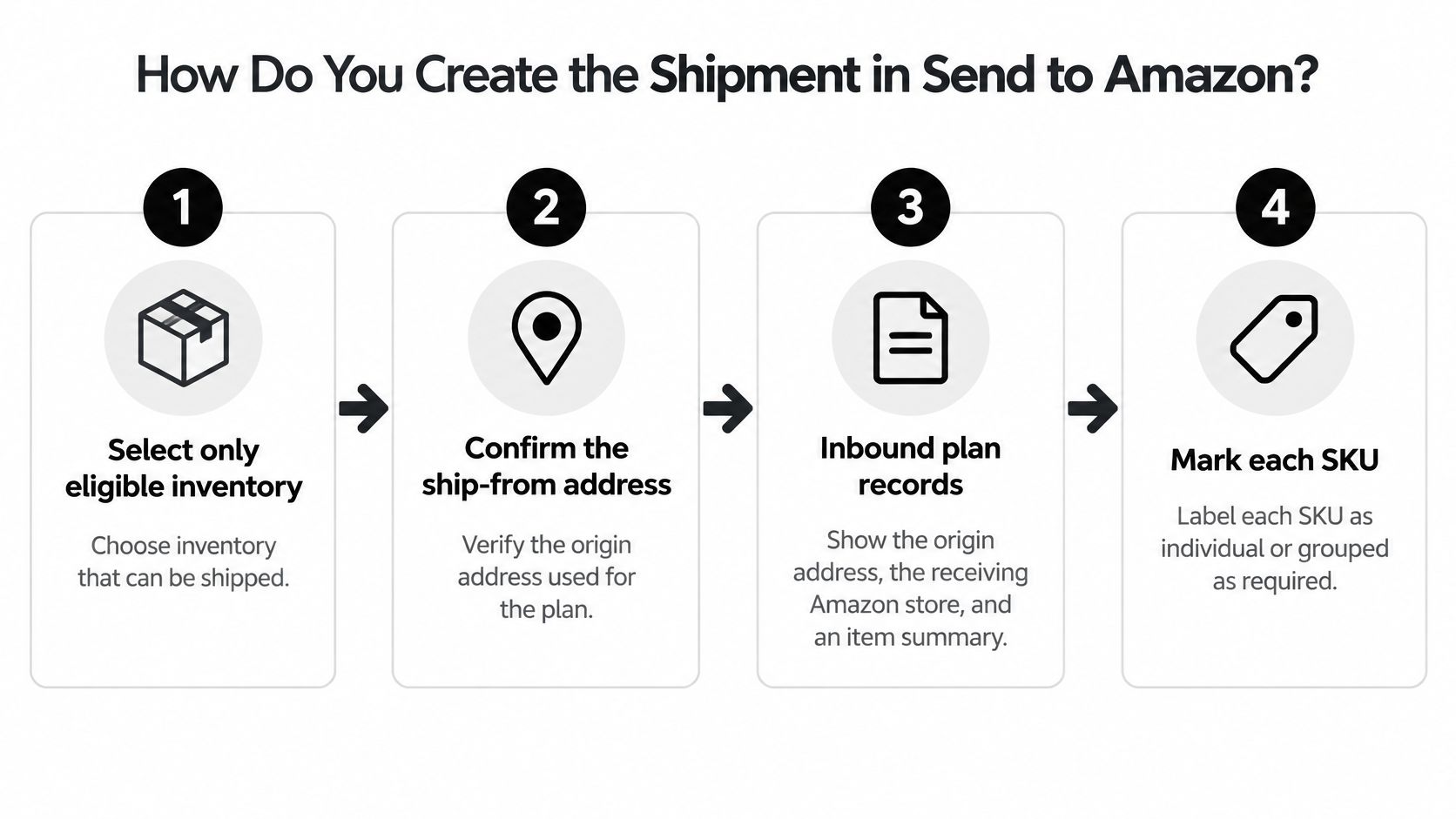
- Select eligible inventory and confirm ship-from. The inbound plan records the origin address, the receiving Amazon store, and the item summary. Restricted or ineligible SKUs should not enter the plan just because they're sitting in the warehouse.
- Define packing and ownership per SKU. Mark each line as individual or case-packed, enter the MSKU and quantity, and set who's responsible for prep and labeling on every line. Creating the plan returns the inbound plan ID, which identifies the plan, not any single confirmed shipment.
- Complete prep and unit labeling. Apply the correct FNSKU and condition label to each unit before cartons close. Prep ownership from step 2 has to match what the warehouse performs, or receiving staff inherit a mismatch they can't fix from the carton exterior.
- Enter box content for every box. Record units per box, total boxes, and weight before placement. This is the carton manifest that later proves what should be inside each outer box.
For freight moves, the transport paperwork has to line up with that manifest. Anyone preparing LTL documentation should cross-check the required fields for bills of lading from Matil against the shipment record, because the carrier document and Amazon's box content describe the same physical freight from two directions.
Generate options, then confirm only the approved one
- Generate placement options and read each one fully. Review destinations, split structure, and fees option by option. Each option carries its own placement option ID, so a screenshot without that ID isn't an approval record.
- Generate transportation options. Enter the ready-to-ship date and, for freight, pallet quantity, dimensions, weight, and stackability. Partnered-carrier availability depends on origin geography, so teams outside eligible regions should plan on a non-partnered carrier path from the start.
- Confirm placement after explicit seller approval. Confirmation uses the plan, the chosen placement option, and returns a shipment confirmation ID. That ID is the durable record of the decision. It isn't interchangeable with the plan ID.
- Print labels only after confirmed completion. Print one FBA Box ID per box, plus pallet labels where pallets are used, once operation status shows the confirmation completed rather than merely accepted.
- Submit tracking at the right level. Small parcel needs a tracking ID for each box. LTL or FTL uses the freight progressive number, alongside carrier name and shipping method.
An accepted request is not a completed shipment. Asynchronous operations can still be in progress or failed after the initial response, so status has to be checked before labels go on cartons.
Reconcile the manifest to the physical boxes before sealing anything. The plan says what should ship, the carton manifest says where each unit sits, and the labels say which shipment each box belongs to. When those three records disagree, dispatch shouldn't proceed on the assumption that receiving will sort it out. Receiving can count what's in the box. It can't reconstruct a plan the warehouse never matched to the freight.
Where Do Box and Pallet Labels Go
Labels fail when teams treat them as printouts instead of a packaging hierarchy. A pallet, an outer box, a case pack, and a sellable unit each carry different identity, and Amazon reads them at different points. Put the right label at the wrong level and the freight becomes hard to trace even if every unit inside is correct.
Amazon's FBA Box ID label requirements state that every box needs its own unique FBA Box ID label, placed on a flat surface with the carrier label, with both barcodes uncovered and not crossing seams, openings, edges, or corners. The same guidance says labels must not be photocopied, reused, or modified for additional boxes, lists standard dimensions of 8.47 by 10.16 centimeters (3 1/3 by 4 inches) with a 10 by 15 centimeter (4 by 6 inch) thermal format also available, and requires four pallet labels at the top center of each pallet side.
Place each label at its own level
| Level | Label required | Placement rule |
|---|---|---|
| Sellable unit | FNSKU barcode matching title and condition | On the unit, scannable without opening other prep where Amazon requires visibility |
| Outer shipping box | Unique FBA Box ID plus carrier label | Flat surface, uncovered, not over a seam, edge, or corner |
| Pallet | FBA Pallet ID labels | Top center of each side, on all four sides |
| Inner case pack inside a larger box | No separate Box ID on each inner pack | The unique Box ID goes on the outside of the primary larger box |
Carton construction supports label readability. Use rigid, six-sided boxes with intact flaps, one address label with complete delivery and return information, and cushioning between items and the box wall so cartons don't deform in transit. A label applied flat in the warehouse can still become unreadable if the carton bulges, crushes at a corner, or gets taped across the barcode during a rushed re-seal. Warehouse leads should check label condition after strapping and stretch wrap, not only at the print bench.
Unit labels deserve the same discipline. Each unit barcode must match that unit's FNSKU, title, and condition, which is why relabeling benches need a scan check rather than a visual glance. Sellers who need the unit-level detail can review Agent Central's Amazon FNSKU label guide, but the operational point stays narrow. The FNSKU identifies the sellable unit. The Box ID identifies the shipping carton. Neither label substitutes for the other.
The outer box mistake that strands cartons
The most avoidable hierarchy error involves case packs inside a larger shipping box. A team packs several manufacturer case packs into one outer carton, then labels each inner case pack as if it were a separate shipping box. Amazon expects the unique Box ID on the outside of the primary larger box, because that's the object the carrier moves and receiving scans first. Inner labels can still help internal picking, but they shouldn't compete with the outer Box ID that ties the carton to the shipment record.
Print timing matters as much as placement. Print only after placement and transportation match the option the seller approved, because a different option can change which shipment a box belongs to. Then map each printed Box ID back to the carton manifest line before pickup. A quick scan sequence works well:
- Scan the Box ID: Confirm it exists once in the manifest and hasn't been duplicated.
- Scan the carrier label: Confirm both labels sit on the same physical box.
- Check the pallet position: Confirm pallet labels are visible on all sides after wrapping.
- Hold exceptions aside: Don't let an unlabeled or double-labeled carton join the pickup to keep the dock moving.
That scan takes minutes at the dock. Reconstructing which carton carried which units after a partial receipt takes far longer, and sometimes the evidence no longer exists.
How Do You Catch Bad Counts Before Submit?
Prep accuracy is measured, not assumed. Amazon's shipment quality guidance sets an FBA Select post-shipment target of at least 95% accuracy for properly prepared items and flags a missed delivery window when more than 10% of units fail to arrive within the stated window, identifying a 7-day domestic window and a 14-day international window. Those thresholds turn the pre-submit check into a performance control, not warehouse housekeeping.
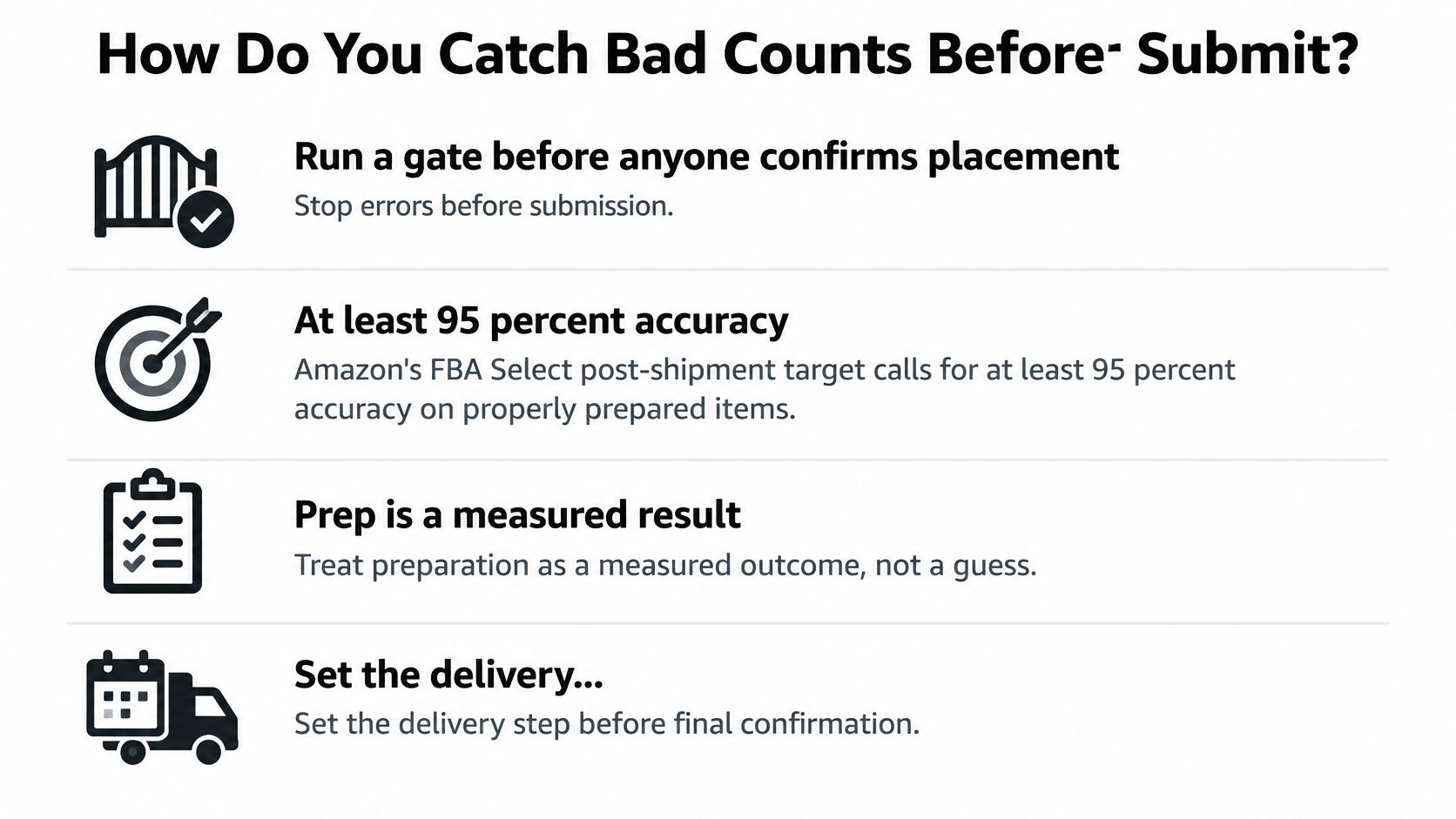
Set the delivery window only after carrier capacity, carton count, and transit assumptions are confirmed. If pickup slips before the window begins, update the window rather than hoping transit absorbs the delay. Sellers tightening the wider count discipline behind this gate can use Agent Central's inventory accuracy guide, while freight teams should also prevent costly freight documentation errors by matching carrier paperwork to the same manifest before dispatch.
Walk the freight in dock order
Check the physical shipment, not the spreadsheet that planned it:
- Pallets first: Count pallets, confirm four labels per pallet, and confirm wrap doesn't cover barcodes.
- Outer boxes next: Verify one unique Box ID and one carrier label per box, both flat and visible.
- Carton data against the plan: Compare MSKU, quantity, prep owner, and label owner on every line with units per box, total boxes, and total weight.
- Units inside a sample carton: Scan FNSKU barcodes and confirm title and condition match.
- Tracking readiness: Confirm carrier name and method are ready, with one tracking ID per small-parcel box or the progressive number for freight.
Two errors recur. Teams paste tracking against the wrong package, so Amazon follows a carton that isn't the one moving. Teams also enter one tracking ID for a whole small-parcel plan when Amazon needs box-level tracking. Both errors survive a desk review because the numbers look plausible on screen. They fail a dock walk because the scanner ties each ID to a specific carton.
Keep the planned quantity, carton manifest, and label file together as one packet. If receiving later counts fewer units, that packet shows exactly which box should have carried the missing stock. Without it, a partial receipt becomes an argument about totals. With it, the investigation starts at a named carton.
What Happens After You Confirm Placement?
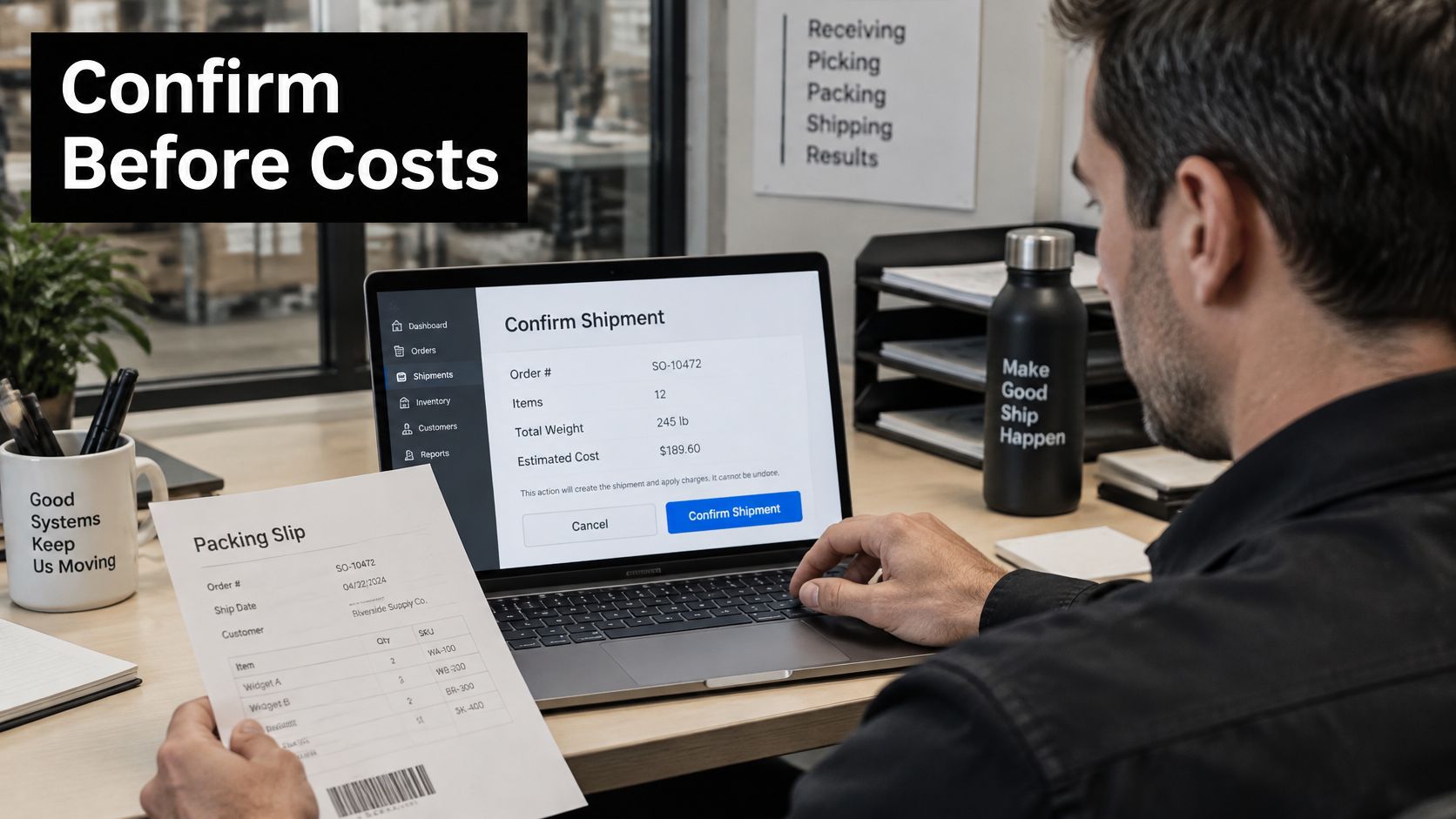
Confirmation is the click that spends the money. Placement and transportation confirmations may be irreversible or charge money, so the seller, not the software, approves the exact option and the charges shown on it. Cancellation, refunds, and edits to plans that haven't shipped depend on the marketplace and the shipment's current state, and Amazon's own help pages govern each case. Nobody should promise a refund or an edit path before checking the rules that apply to that shipment.
Separate accepted, completed, and failed
A successful HTTP response only proves Amazon accepted the request. Poll operation status until it reports a final state. If the operation finishes as failed, correct the stated input and submit a new confirmed action. Replaying the identical request gets nothing back. Before submission, every write requires a preview, a confirmation, and an idempotency key, which blocks duplicate submissions when a user retries after a slow response.
Keep all three identifiers in the shipment record, each in its own field:
- Inbound plan ID: Identifies the plan that grouped the intended inventory.
- Placement option ID: Identifies the destination and fee option the seller selected.
- Shipment confirmation ID: Identifies the confirmed decision that resulted from that selection.
Mixing those IDs breaks support cases and internal audits. The inbound placement service fee lands 45 days after the shipment is received, and the finance analyst tracing that charge needs the confirmation record. The warehouse lead tracing carton contents needs the plan ID and the manifest. One ID pasted into every field gives neither a clean trail.
Split carrier and appointment handling by geography
Amazon's non-partnered carrier shipment documentation limits Amazon-partnered carrier shipments to origins in the contiguous United States, so freight leaving from anywhere else runs on the seller's own non-partnered carrier even when the plan was built the same way. Self-ship appointment tools cover only a subset of marketplaces. Everywhere else, the dock appointment gets booked externally with the carrier or facility, while carrier name, method, and tracking still go on the shipment record.
Reconcile partial receipts against the carton packet
When receiving counts fewer units than were sent, match received units against the carton packet rather than re-arguing totals. Delayed or stranded stock usually traces back to a bad delivery window, a missing Box ID, or tracking attached to the wrong carton. Those are pre-submit failures surfacing after the freight left. The confirmation record names the option, and the packet names the carton, so the investigation starts at a specific box instead of a spreadsheet.
Approve Charges Before You Confirm Placement
Put a named approver between the preview and the confirmation click. That person signs off on the exact destinations, carrier path, and charges on the selected option, in writing, before anyone confirms. If the option changes, approval starts again; an earlier yes on a different split is not consent to a new fee structure. The charge itself arrives later, since the placement fee posts 45 days after receipt, so the approver is committing cash the ledger will not show until the freight has long since left the dock.
Use Agent Central for facts and guarded steps
For teams working inside Claude, ChatGPT, OpenClaw, Cursor, or another MCP client, Agent Central is a hosted MCP server that connects that client to Seller Central and Amazon Ads through Amazon's authorization. Its live Seller Central reads include FBA inbound plans, options, operation status, and shipping documents, alongside Buy Box, competitive pricing, listing state, reviews, payment transactions, and other account facts. Agent Central returns facts, metrics, and Amazon's own fields. It does not recommend a split or pick the next action; the seller's agent or workflow proposes, and the named approver decides.
Inbound writes stay inside strict boundaries:
- Guarded by default: every write is previewed first, confirmed by the seller, and protected by an idempotency key, with before and after values logged.
- Scoped access: the connection runs on Amazon's authorization plus a scoped API key, so the agent works only within the access the seller granted.
- No implied booking: a returned option or preview does not reserve capacity or keep a quote valid.
Setup follows the same sequence for every seller. Connect Seller Central through Amazon's authorization, then paste the issued API key into the agent's config. Agent Central handles credentials, token refresh, and API access, so no Amazon API credentials are needed.
Plans are priced by monthly Amazon order volume, with a 14-day free trial that needs no card and current tiers on the Agent Central pricing page. Account data syncs on a schedule, and a new account starts with 30 days of history that builds from there. Whatever client surfaces the facts, the operating rule stays the same: print labels and send tracking only after the approved confirmation shows a completed operation, and file the approval with the shipment packet so finance and operations argue from the same evidence when the fee posts.
To create a shipment without losing the approval trail, use Agent Central to pull inbound plan, option, operation status, and shipping document facts into the AI client the team already uses, then keep confirmation behind preview, seller approval, and an audit log. Visit agentcentral to connect Seller Central through Amazon's authorization and start with the next replenishment plan.
Related Agent Central pages
- Fulfillment tool reference
MCF shipping previews, orders, order creation, tracking, and returns.
- Amazon Seller Central MCP server
Canonical hosted MCP overview for Seller Central, Ads, inventory, catalog, finance, and fulfillment data.
- Amazon seller data for AI agents
How Agent Central normalizes Amazon seller data before exposing it to AI clients.
- Inventory tool reference
Inventory, orders, sales velocity, listing registry, days of cover, returns, and reimbursements.
- Amazon seller MCP servers compared
How hosted MCP services compare with official Ads MCP, local repos, connector tools, and automation platforms.
- Connect Seller Central to Claude
Step-by-step path from Amazon OAuth to a Claude connector or MCP config.
Related reading
- 5 Best Amazon PPC Agencies for Brands Already Using AI
Compare five Amazon PPC agencies by published services, pricing, reporting and scope when your brand already uses AI with its Amazon data.
- MCP Client Explained for Amazon Seller Teams
An MCP client connects Claude or ChatGPT to one MCP server. See how sellers use it for Amazon Ads and Seller Central facts.
- Model Context Protocol Explained for Sellers
Model context protocol, explained: clients, servers, tools, OAuth, and how Amazon sellers use it for ads and Seller Central data.
- Amazon Back End Keywords: Limits and How to Check
Amazon back end keywords are hidden Search Terms under 250 bytes. Learn Seller Central limits, edit steps, and how to compare your own changes.
Connect Amazon seller data to your AI client.
Agent Central gives Claude, ChatGPT, OpenClaw, Cursor, and other MCP clients structured access to Amazon Ads, Seller Central, inventory, orders, catalog, finance, and fulfillment data.